8.5.0
The OpenAI plugin integrates OpenAI as a prompt provider in formcycle. OpenAI with ChatGPT is available as a dedicated provider type once the OpenAI plugin has been installed.
Features:
- Direct access to ChatGPT models
- OpenAI-specific API
- Use of additional capabilities such as image generation and content moderation
Contents
Prompt connections
For general information, see the help article prompt connections. The following section describes the configuration specific to OpenAI.
|
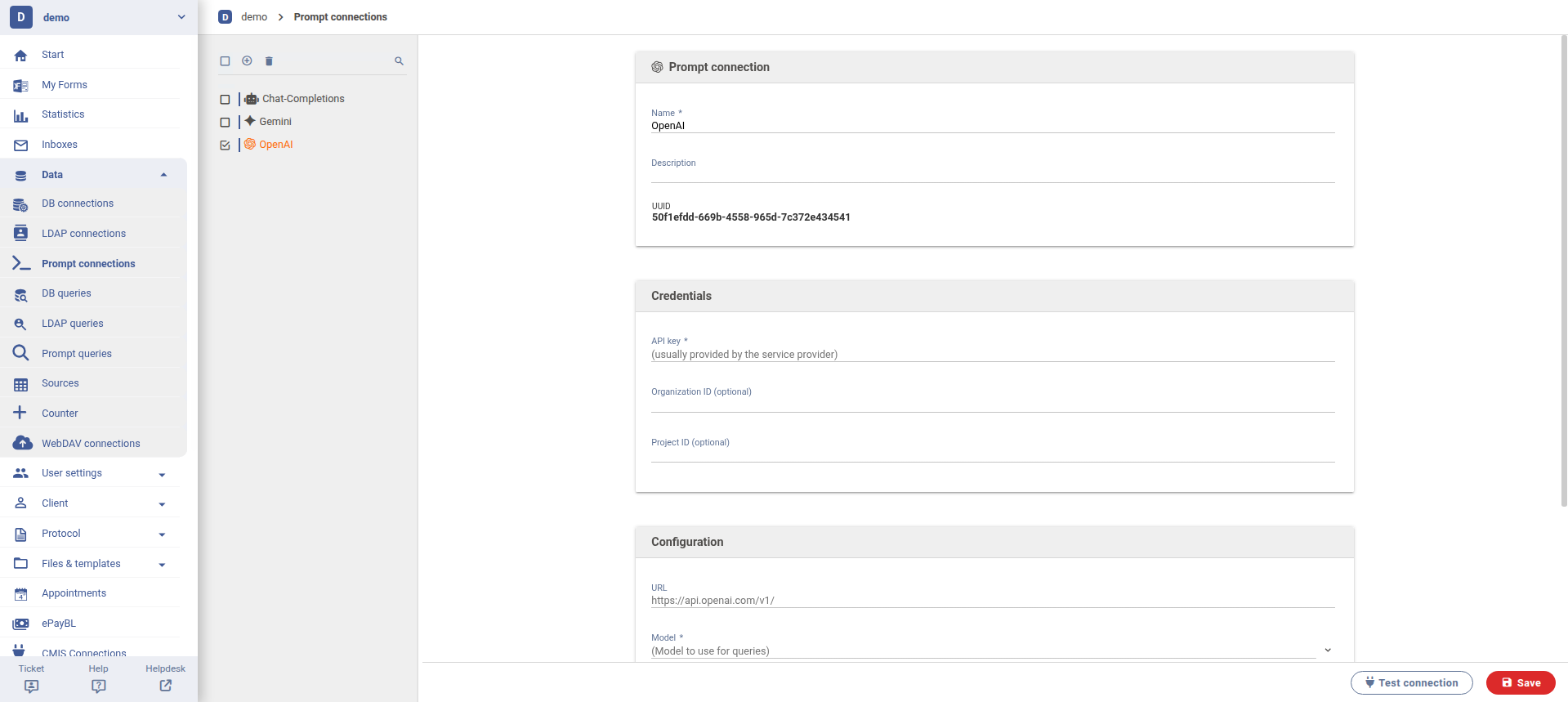
Configuration fields:
- API key
- Key provided by OpenAI.
- Organization ID
- Optional. The organization ID is the unique identifier for an organization that can be created and managed in the OpenAI backend. If set, for example, that organization's quota will be used.
- Project ID
- Optional. The project ID is a unique identifier for a specific project within an OpenAI organization.
- URL
- Optional. Base URL of the OpenAI API.
- Model
- Select an OpenAI-provided model. If available, fine-tuned models can also be selected.
Prompt queries
For general information, see the help article prompt queries. The following section describes the configuration specific to OpenAI.
Tasks in OpenAI
When using the OpenAI plugin, additional tasks are available. The selected task determines which inputs are supported and in which format the result is returned. Depending on the task, the configuration sections differ.
|
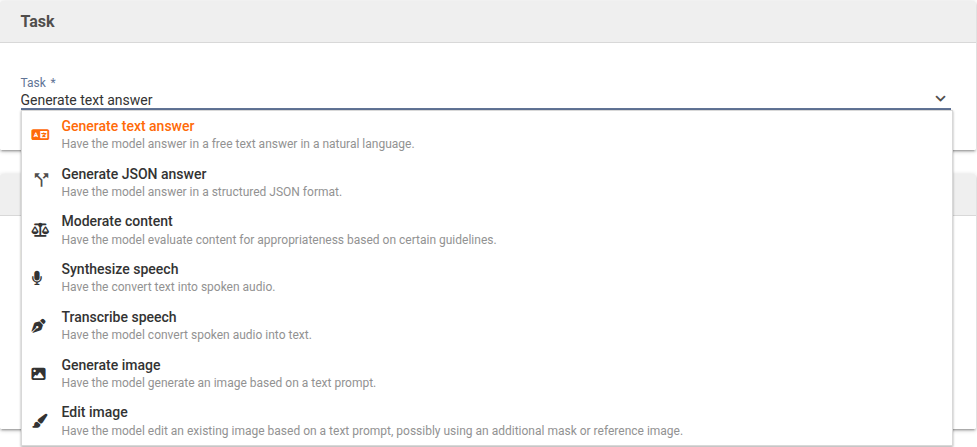
The individual tasks are described separately below.
Task: Generate text answer
The task "Generate text response" produces a free-form response in natural language. It is suitable for all use cases where readable text output is required, such as explanations, summaries, or writing assistance.
Prompt
The Prompt section defines the input provided to the AI and how the response should be generated. Web search is available in the OpenAI plugin. The model can therefore access current internet content.
Files
Files can optionally be included in the prompt request to provide additional information.
Detailed information on configuring the Prompt and Files sections can be found in the help article prompt queries.
Fine-Tuning
The Fine-Tuning section allows optional parameters that influence response behavior to be adjusted. These settings are not required for every use case. In general, the default value "automatic" can be retained.
|
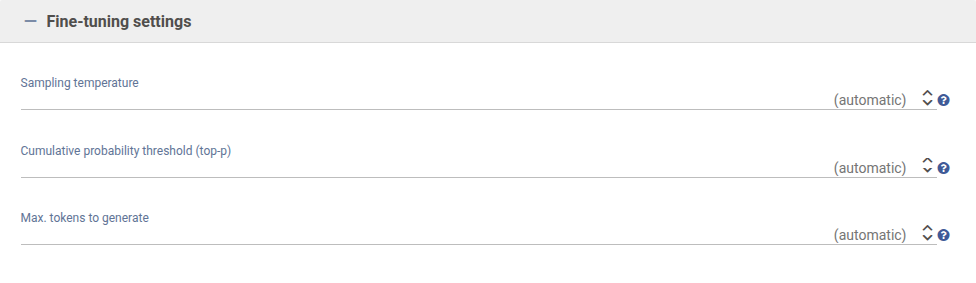
- Sampling temperature
- Controls how creative or restrained responses are phrased. Lower values lead to more factual and consistent results. Higher values produce more varied and creative wording.
- Cumulative probability threshold (top-p)
- Determines how much the AI varies in word choice. Lower values lead to more constrained responses. Higher values allow greater linguistic variety.
- Maximum tokens to generate
- Defines the maximum length of the response. Once the specified limit is reached, output is stopped automatically.
Task: Generate JSON answer
The task "Generate JSON response" produces a structured response in JSON format. It is suitable for use cases where the response needs to be machine-readable and processed further.
All other sections such as Prompt, Files, and Fine-Tuning are also available for this task and correspond in structure and function to the "Generate text response" task.
JSON Schema
The JSON Schema section is additionally available when the "Generate JSON response" task has been selected. This is where the structure in which the model should return its response is defined.
The various options for defining and configuring the JSON schema are described in detail in the help article prompt queries.
OpenAI supports only part of the JSON Schema standard. The system attempts to adapt the schema automatically as far as possible so that these limitations are met. Under normal circumstances, no manual adjustments are required. See the OpenAI API documentation for details on JSON Schema support.
Task: Moderate content
This task checks whether a text violates policies or content requirements. The AI analyzes the provided content and evaluates whether it contains problematic, inappropriate, or potentially prohibited material.
|
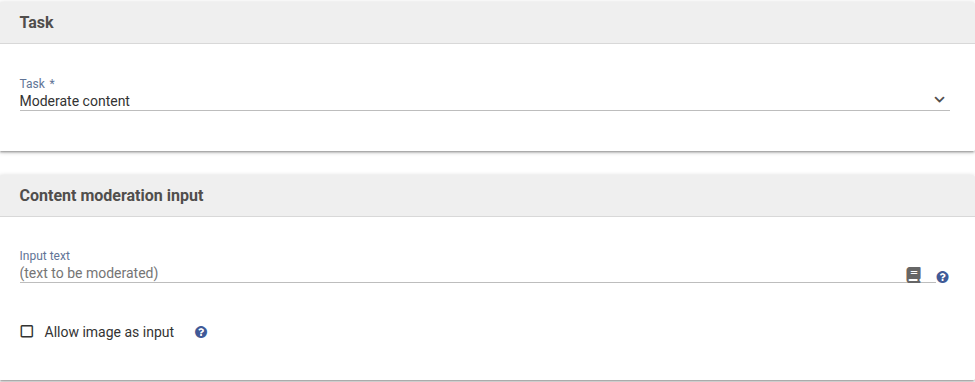
The input is a text to be reviewed. Optionally, an image can also be included if the corresponding option is enabled. In that case, the visual content is analyzed as well.
This task is particularly suitable for the automated checking of user input, form content, or generated text before further processing or publication.
Task: Synthesize speech
This task converts input text into an audio file. The AI generates a spoken version of the written content, which is returned as a file.
|
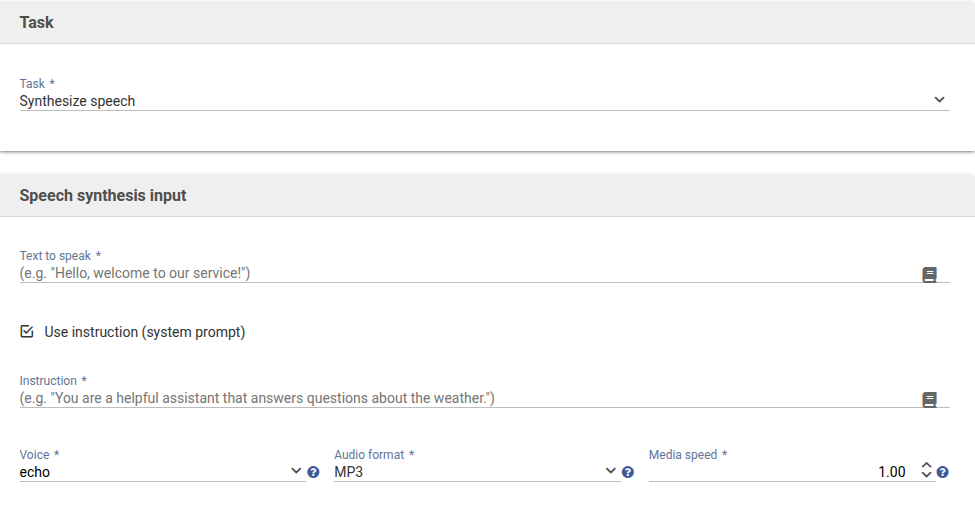
The "Input for speech synthesis" section defines which text should be spoken. Optionally, an additional instruction can be provided to influence style or emphasis.
The selection fields determine
- which voice is used,
- in which audio format the output is provided,
- and at which playback speed the text is spoken.
The result is an audio file that plays back the input text in the selected form.
Task: Transcribe speech
This task automatically converts spoken language from an audio file into written text. The AI analyzes the audio content and creates a transcript, which is returned in different structures depending on the selected format.
|
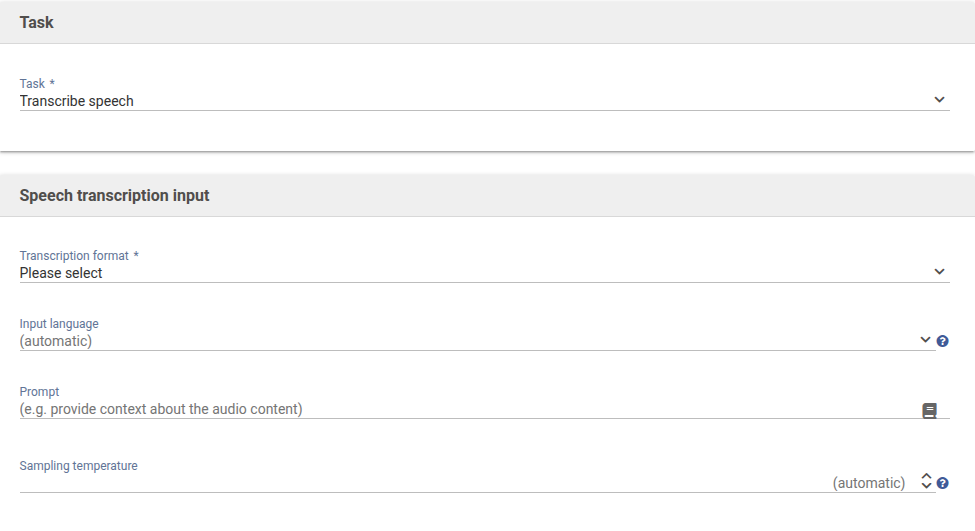
- Transcription format
- This defines the format in which the transcript is generated. Options include unformatted text, segmented output with timestamps, or subtitle formats such as SRT and VTT. The selected format determines how detailed the result is and whether it can be used directly in video or media projects.
- Input language
- The language of the audio file can be detected automatically or specified manually. Explicit selection can improve accuracy, especially for short recordings, dialects, or domain-specific content.
- Prompt
- Additional context for the audio can optionally be provided. Such hints help the system correctly recognize specific terms, proper names, or thematic context.
- Sampling temperature
- This value influences how strictly the model adheres to the most likely transcript when selecting words. Lower settings lead to the most precise and consistent rendering of the spoken content. Higher values may in rare cases result in slightly varying phrasing, but are usually not necessary for standard transcription tasks.
Task: Generate image
This task generates a new image based on a textual description. The quality and appearance of the result depend largely on how precisely the request is phrased. In addition to the description, various image properties can be controlled directly.
|
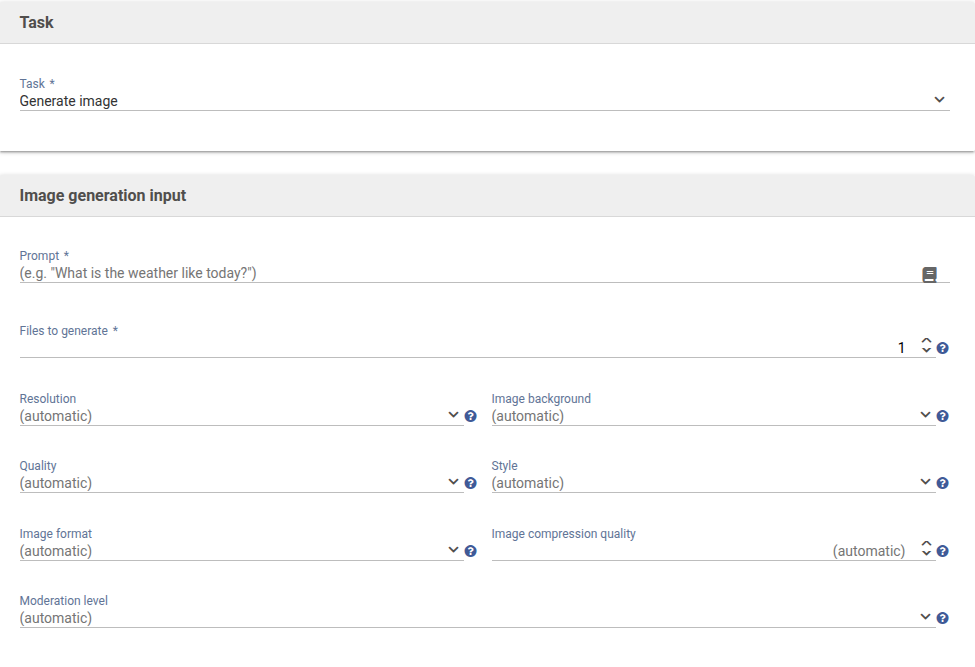
- Prompt
- This is where the content of the image is described. The more specifically the subject, style, perspective, colors, or mood are defined, the more closely the result will match expectations.
- Files to generate
- Defines how many image variants are created at once. Multiple variants are useful when different interpretations of a subject are desired.
- Resolution
- Determines the size of the generated image. Higher resolutions provide more detail, but require more processing time and storage space.
- Image background
- This setting controls whether a normal background is generated or, for example, a transparent background is used. This is particularly relevant if the image will later be edited further or used as a cutout.
- Quality
- Controls the level of detail and care used in image generation. Higher settings can produce more precise results, but require more resources.
- Style
- Allows a specific visual appearance to be selected, such as realistic, illustrative, or artistic. The style has a significant impact on the overall effect of the image.
- Image format
- Defines the file format of the generated image file. Depending on the intended use, either a lossless or compressed format may be appropriate.
- Image compression quality
- Determines how strongly the image is compressed in certain formats. Higher quality reduces visible loss, but results in larger files.
- Moderation level
- Defines how strictly content is checked. Higher settings more strongly filter potentially problematic content and may restrict the generation of certain subjects.
Task: Edit image
This task is used to modify an existing image in a targeted way. It is based on an uploaded image that is adjusted or extended using a text instruction. This makes it possible to correct specific areas, add or remove objects, or change the style.
|
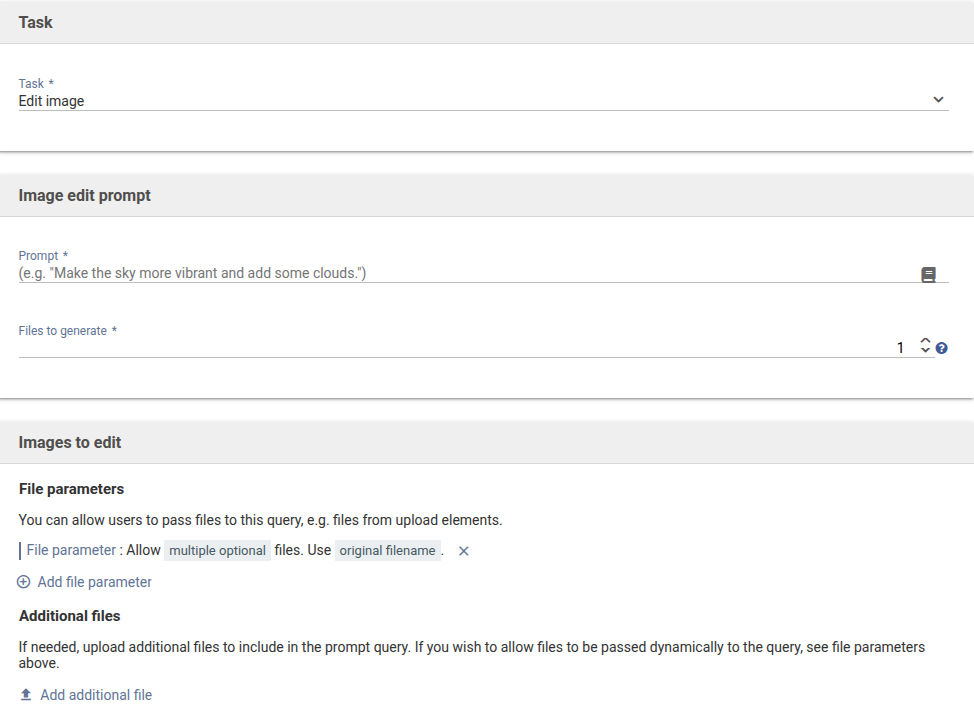
- Prompt
- This is where the desired changes are described. The instruction should clearly state what should be replaced, added, or adjusted. The more precise the description, the more targeted the editing result will be.
- Files to generate
- Defines how many edited variants of the original image are created. Multiple variants make it possible to compare different interpretations of the requested change.
- Images to edit
- In this section, the source image is provided using an upload element. Optionally, additional files can be included if multiple images should be processed or combined.
- Image mask
- Optionally, a mask can be uploaded to define exactly which areas of the image may be changed. Transparent areas of the mask indicate where changes should be made. Non-transparent areas remain unchanged.
- Fine-tuning settings
- The Fine-Tuning section makes it possible to adapt the output more precisely to the intended use case.
- Resolution determines the size of the generated image. Higher values lead to sharper, but usually larger, files.
- Image background defines whether the background should be transparent or filled. This is relevant for cutouts or further use in other applications.
- Quality influences image sharpness and level of detail. Higher settings deliver clearer results, but may increase file size.
- Image format defines the output format of the file. Depending on the intended use, either a lossless or compressed format may be appropriate.
- Image compression quality controls the degree of image compression. Lower compression preserves more detail, while higher compression reduces file size.
Was this article helpful?
That’s Great!
Thank you for your feedback
Sorry! We couldn't be helpful
Thank you for your feedback
Feedback sent
We appreciate your effort and will try to fix the article
