Prompt queries define what an AI should do and how a response is generated. They are built on top of an existing prompt connection and specify which task is to be performed, which inputs are used and what the result looks like.
Depending on the provider, the configuration and the available tasks may differ. However, all prompt queries share the following characteristics:
- They receive texts and files as input.
- They process this data using the AI in some way.
- They return texts and files as output.
Contents
Navigating to Prompt queries
In the left navigation, open the following section:
Data -> Prompt queries
|
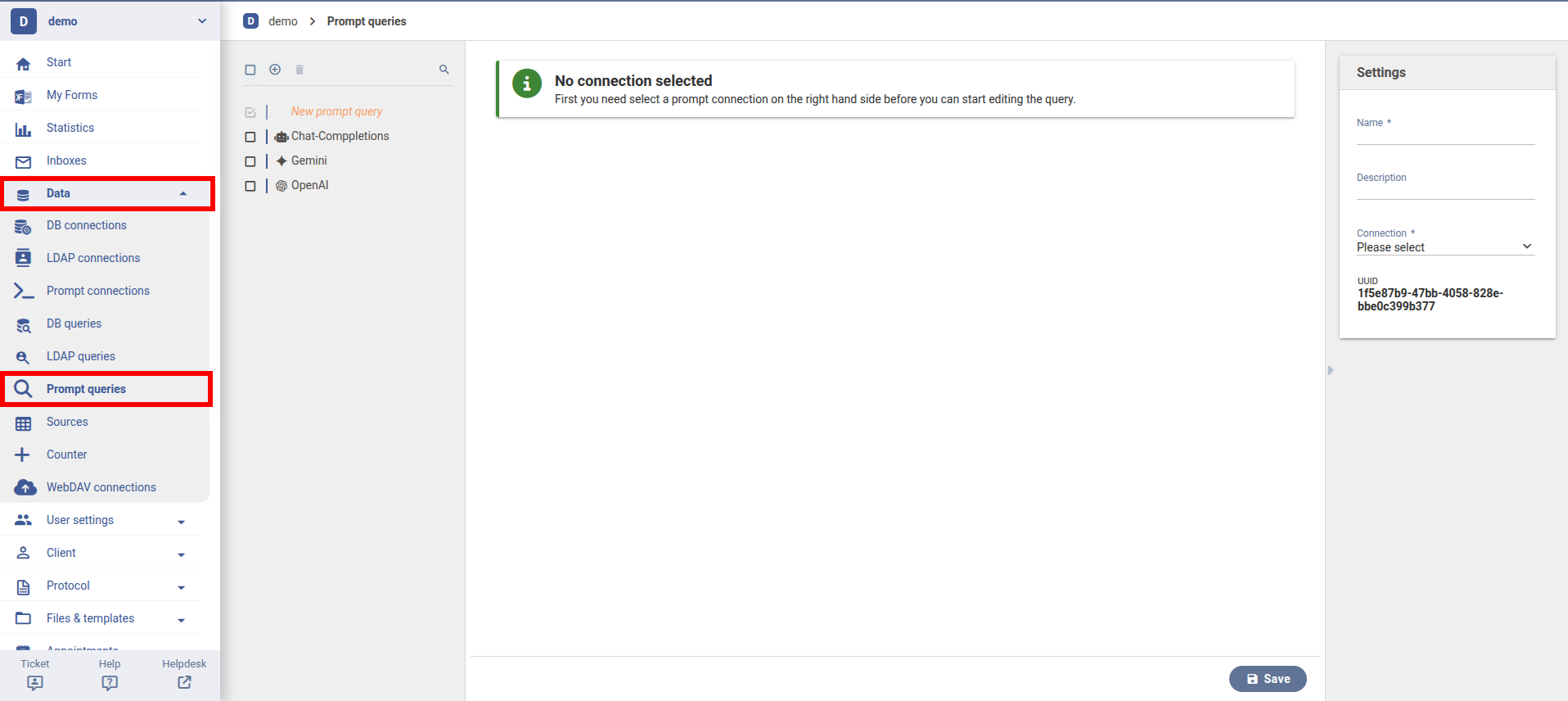
The overview shows all existing prompt queries. New queries can be created here and existing ones can be edited.
General settings
This section is used to define the basic properties of a prompt query and to select the associated prompt connection. The selected connection determines which AI service is used and which features are available for the query.
|
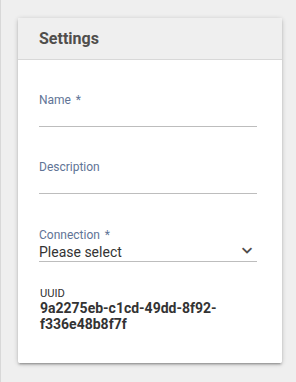
- Name
- Serves as the unique identifier for the prompt query.
- Description
- Documents the purpose of the prompt query.
- Connection
- Select an existing prompt connection. No further settings can be configured until a connection has been selected.
Provider-specific configuration
Prompt queries are always created on the basis of a previously configured prompt connection. The features and settings available in a prompt query depend on the provider used and the plugins installed for it.
Regardless of the provider, there are a number of basic settings that are identical for all prompt queries. In addition, depending on the provider, further tasks or special configuration options may be available that extend the range of functionality.
The following sections describe the provider-independent settings common to many prompt queries. Provider-specific configurations and advanced features are documented in separate help articles:
- Chat completions
- OpenAI
- Google Gemini
Task
For most providers, configuration typically begins with selecting a task. The task is part of the basic settings and determines what data the AI accepts as input, how it processes that data and what type of result it returns.
|

The available tasks depend on the provider defined by the selected prompt connection. Some providers require the installation of a corresponding plugin. In addition to provider-independent tasks, additional advanced tasks may be available that are described separately. Typical task types include:
- Generate text answer
- Accepts a prompt and files as input and generates a text response.
- Generate JSON answer
- Accepts a prompt and files as input and generates a response as a JSON value. Particularly suitable when the response needs to be accessed programmatically.
- Moderate content
- Accepts text and optionally files as input, analyzes them and returns a score indicating whether undesirable or harmful content is present.
- Synthesize speech
- Accepts text as input and generates an audio file of the spoken text.
- Transcribe speech
- Accepts an audio file containing speech as input and returns a transcript in text form.
- Scale image
- Accepts an image file as input and scales it up or down.
- Generate image
- Accepts a prompt as input and generates an image, returned as an image file.
- Edit image
- Accepts an image file as input and returns an edited version of the image.
- Generate music
- Accepts a prompt as input and generates music, returned as an audio file.
- Generate video
- Accepts a prompt as input and generates a video, returned as a video file.
Prompt
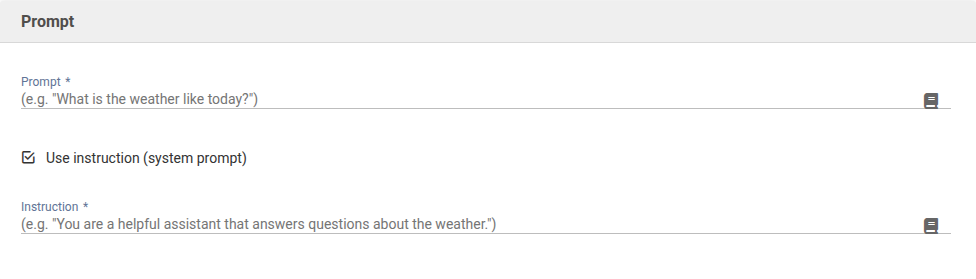
The Prompt section defines what the AI should respond to and under what conditions the response is generated.
|
Prompt
The Prompt field contains the actual query to the model. The description entered here determines the content of the generated response.
Instruction
This option enables an additional instruction for the model. The instruction serves as a higher-level context and influences the style and behavior of the response. Some providers do not support a separate instruction.
Files
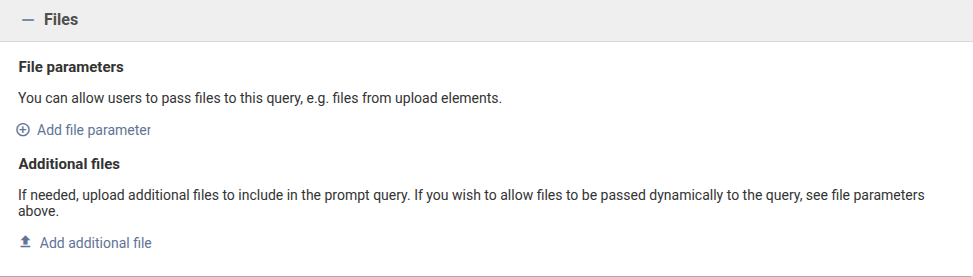
Files can optionally be included in a prompt query to provide additional information.
|
File parameters
Files parameters allow files to be passed dynamically to the query. These files may come for example from an upload element in the form and are automatically included when the query is executed. Multiple parameters can be configured although one file parameter is generally sufficient.
Multiple file parameters may be useful when each parameter is assigned a name and the prompt needs to reference that name (if supported by the provider).
The following options are available when configuring a file parameter:
- Allowed file formats can be defined to control which files may be passed to the AI. If a file that does not match the allowed formats is submitted, the request is aborted and an error is returned.
- It can be defined whether exactly one file or multiple files are permitted. Additionally, it can be configured whether the files are optional or required when executing the query.
- Optionally, the file name can be modified before being passed to the AI. If the field is left empty, the original file name is retained. Not all providers support passing a custom file name.
- Optionally, clicking on the name of the file parameter (on the far left) allows the parameter's name and description to be changed. The name serves as an identifier, while the description is used for documentation and is displayed, for example, as a tooltip in the workflow action.
Additional files
Additionally, files can be attached directly to the prompt query. These are made available to the AI on every execution.
JSON schema
The JSON schema section is additionally available when the task ''Generate JSON answer'' has been selected. This is where the format in which the model should return its response is defined.
The JSON schema describes:
- The expected properties of the response.
- Their data types.
- Optional metadata such as name or description.
This option is particularly useful when the data returned by the AI needs to be processed automatically, for example within a workflow where it can be accessed via placeholders. A free-text response would only be of limited use in such cases. A typical example would be extracting data from an image, such as a driver’s license or identity card.
Expected output
The “Expected output” section defines how the JSON schema should be configured. Depending on the use case, different options are available to define the desired output format.
The selected option determines how the JSON schema is created and which configuration options are available.
Enlist properties
Definition of individual expected fields of the JSON response using a structured property list |

With this option, a JSON object is always expected, where the properties are defined directly via a list:
- Each list entry represents a property in the resulting JSON response object
- A data type can be defined for each property
- Required fields can be explicitly marked
- Optionally, a description can be provided for each property to document its purpose or expected content. This can help the model better understand the meaning of the property and populate it correctly.
This option is suitable when simple and clearly structured data is expected from the model. Nested or highly complex structures are not intended here.
Generate from JSON example
Creation of the schema based on a sample JSON, from which the structure is automatically derived |
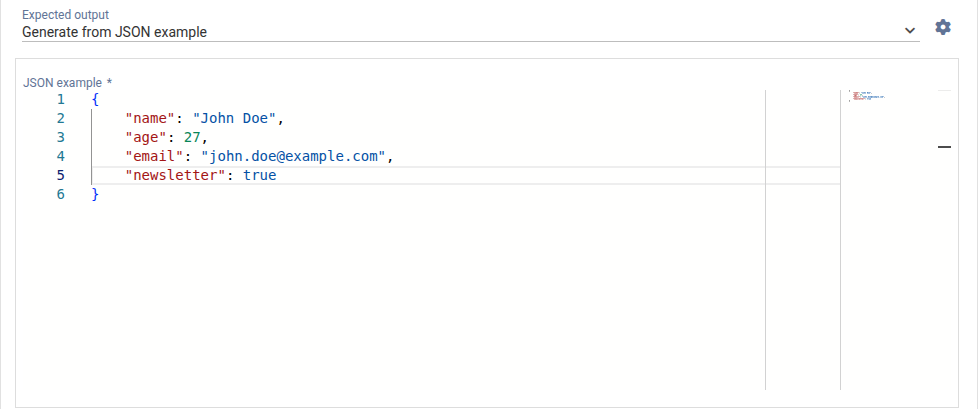
In this option, a sample JSON is provided that represents the desired output. The system automatically generates a corresponding JSON schema from this example.
This option is suitable when:
- the desired output format is already known
- a structure should be derived quickly
- the schema should not be created manually
Configure with visual editor
Graphical creation and nesting of fields within the expected JSON structure |
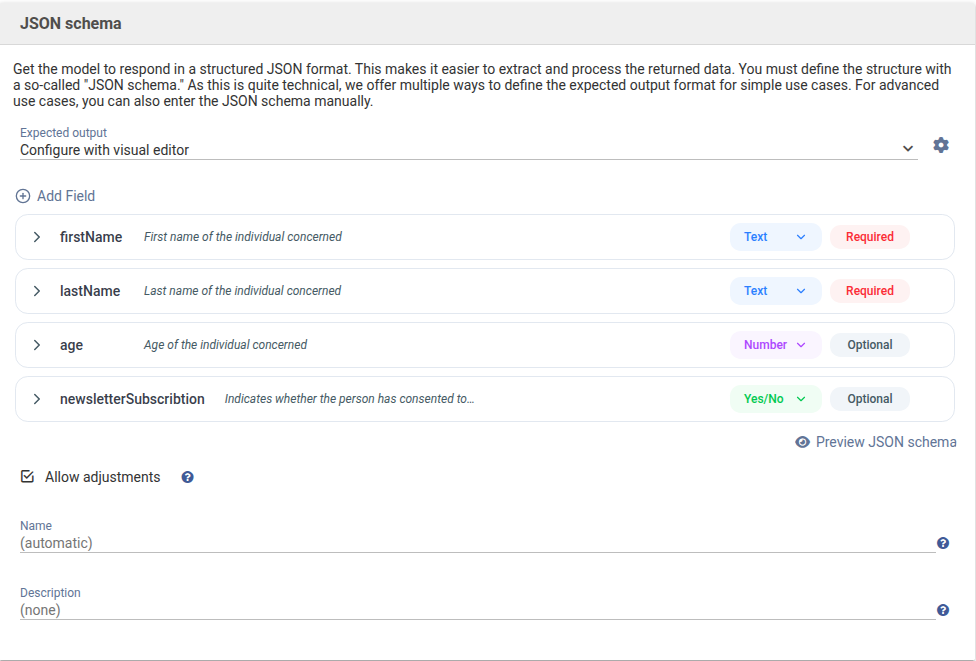
The visual editor allows you to create a JSON schema in a structured way using a graphical interface. It is suitable for more complex or nested JSON structures without requiring manual schema definition.
Within the visual editor, fields can be built step by step, grouped, and nested.
Define with manually entered JSON schema
Direct input of a complete JSON schema for precise control of the response structure |
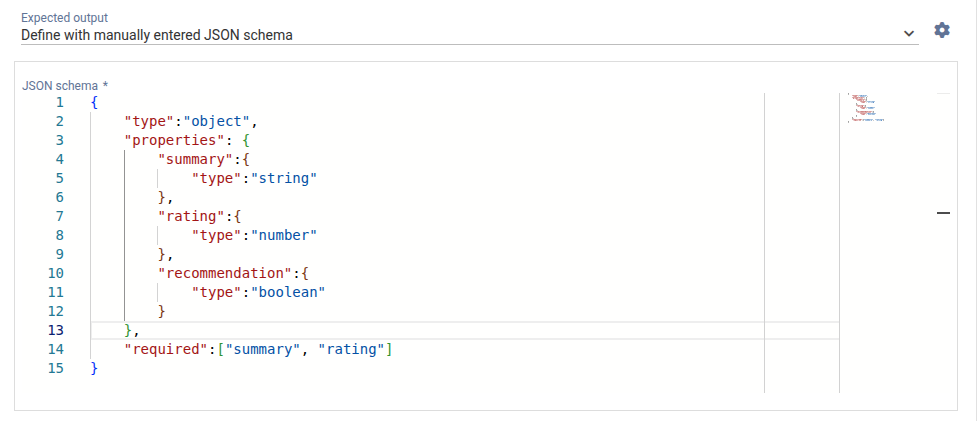
In this option, the JSON schema is entered directly as text. This is intended for advanced users who:
- require full control over the schema
- need to model complex or specialized structures
- already have experience with JSON schema
Allow adjustments
This checkbox controls whether the system is allowed to modify the schema. Due to the complexity of the JSON Schema standard, most providers do not support its full feature set and impose certain restrictions or requirements. If the checkbox is enabled, the system attempts to adapt the JSON schema accordingly. If it is disabled,
the system will not make any changes to the configured JSON schema.
Input parameters
Input parameters allow dynamic values to be used within a prompt query. This enables the same query to be executed with different data. For example, when used in a workflow action, the value of each parameter is defined in the workflow designer.
Input parameters allow placeholders in the prompt query to be populated with dynamic values. |

Parameters are used directly in the prompt via placeholders. As soon as such placeholders are included in the request, the system automatically detects the input parameters.
After inserting placeholders, a table appears listing all detected input parameters.
Automatically generated list of all parameters used in the prompt, including configuration options |
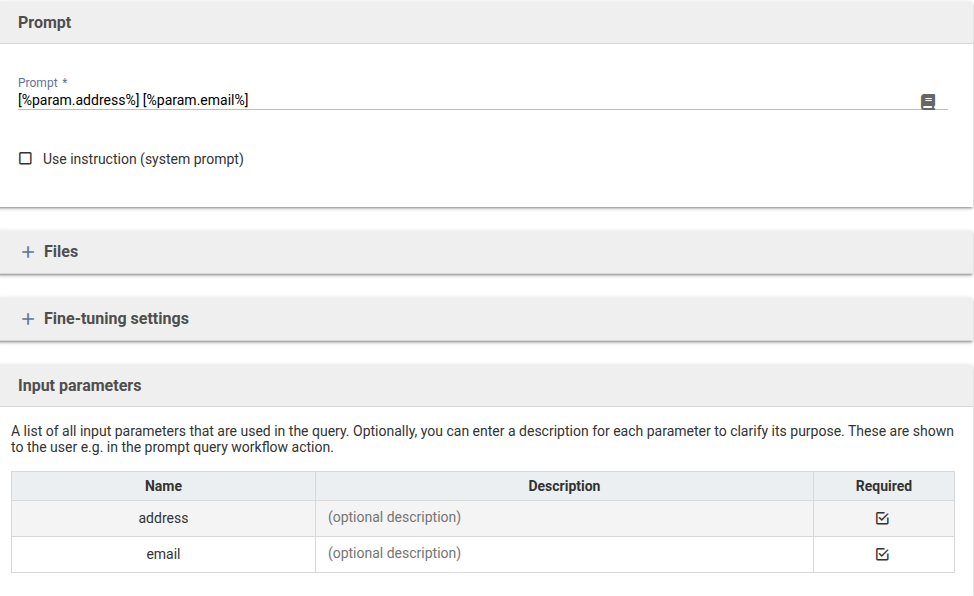
- Name
- Technical identifier of the parameter as used in the prompt.
- Display name
- Optional. Clicking on the name opens a popup where the display name can be edited. Used for documentation and shown, for example, in workflow actions.
- Description
- Optional field to describe the purpose of the parameter. Used for documentation and displayed as help text in workflow actions.
- Required
- Indicates whether the parameter must be provided when executing the query.
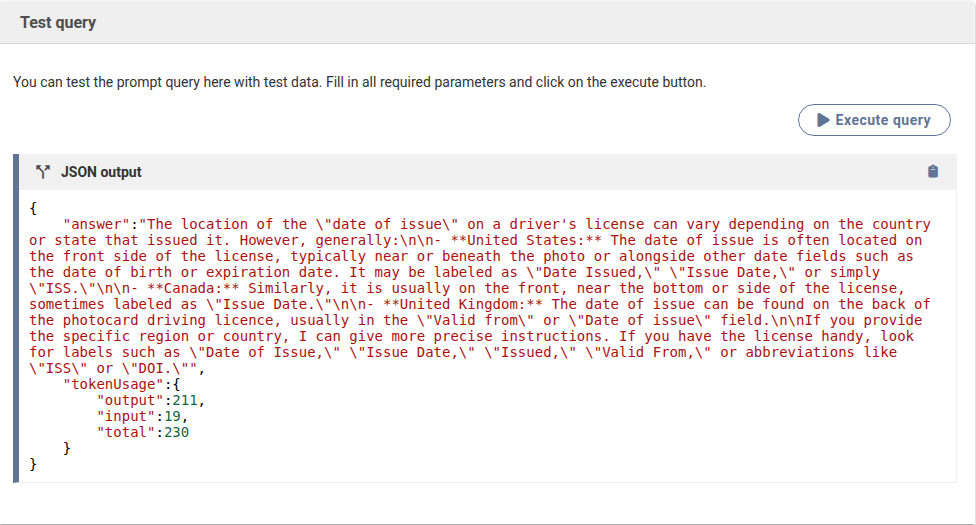
Test query
The prompt query should be tested before use. Depending on the configuration, an input form is displayed where required and optional text and file inputs can be defined. The query can then be executed via the button.
If the query is successful, the result is displayed. Depending on the configuration, the result may consist of text or files. Files can be downloaded by clicking on them.
If the request fails, the error that occurred is displayed. Depending on the provider or plugin, the level of detail in the error message may vary.
Test execution of a prompt query with display of the generated result |
Was this article helpful?
That’s Great!
Thank you for your feedback
Sorry! We couldn't be helpful
Thank you for your feedback
Feedback sent
We appreciate your effort and will try to fix the article
